


Ever had one of those moments when you snap a perfect photo, only to find it later glitched into a fuzzy, pixelated mess? It’s like your gallery app decided to go all avant-garde on your memories. “Glitched” images… those with missing pixels, weird colour bands, or unreadable sections… can happen to anyone. These glitches usually result from file corruption rather than intentional filters, and they can be super frustrating. Luckily, you don’t need to panic (or become a sorcerer) to fix them. Whether it’s a bugged phone photo, a scrambled JPEG, or even a wonky wallpaper, there are steps you can try before calling in the big guns.
Glitch 101: Why This Happens
First, a little diagnosis. Files can go wonky for many reasons. Maybe the photo never fully saved (a power cut or interrupted transfer can leave a half-finished file). Or your storage media is misbehaving (an aging SD card or hard drive can scramble the data). Even software bugs count: a camera app crash or a buggy gallery update might corrupt an image. Windows users have seen screenshots abruptly cut off, often due to software hiccups or disk errors. In short, hardware failures, software glitches, or bad file formats can all turn your photo into unintentional glitch art. Phones are guilty too – a sudden crash or failed camera save can make a pixelated wreck of a picture. And yes, even JPEGs and RAWs from expensive cameras aren’t immune (ever inadvertently yank out an SD card mid-write? That’s a quick way to meet a corrupted photo!).
Here’s the scoop: corruption often shows up as partial images, strange stripes, color shifts or outright unreadable files. You might get an error like “cannot open file”, or see a garbled preview full of artifacts. For example, one tech guru notes photos often become pixelated or blurry when a save is interrupted. Another common story: a camera app freeze stops an image from finishing saving, leaving only a fragment behind. Hardware can also fail silently… a dying memory card or hard drive may report “file ok” but actually contain random garbage. The bottom line: unexpected interruptions or faulty gear = photo glitches.
Quick Fixes to Repair Glitched Images
Before you download anything, try these DIY tricks. Sometimes the simplest solutions work:
- Restart & Retry: Turn your device off/on. Sounds basic, but rebooting can clear temporary glitches in software or memory. Once rebooted, try opening the image again.
- Use a Different Viewer: Sometimes the app isthe culprit. So just go ahead and try opening that photo in another program or even maybe another device. If it opens elsewhere, save/export it as a new file.
- Rename or Move the File: You probably would call it a bluff but its true that changing the filename or moving the photo to another folder can also help. Doing this will force your system to rebuild those thumbnail/cache and that sometimes fixes those minor header issues.
- Clear App Cache: If you saw that glitchy pic in your phone’s Gallery app, clear that app’s cache, which is usually in Android Settings > Apps. This can zap phantom thumbnails or stuck previews.
- Change File Format: If you can open the file in any program, try saving it as a different format (e.g. open a JPG and “Save As” PNG). Converting can bypass some corruption issues and salvage the visible part of the image.
- Check the Storage: If your photo was on removable media, remove and reinsert the card or USB (ideally eject first!). Inspect the card on a PC – sometimes even running a disk check or repairing the drive can recover data. A faulty card is a common culprit.
- System Updates: Make sure your phone/OS is up to date and yeah, keep your photo apps updated too.
If your file suddenly becomes a total mess (like 0 KB or just a blank white box), odds are it’s badly corrupted. In that case, quick fixes may not be enough, and you’ll need stronger methods.
Fixing Glitched Images on Android (and Wallpaper Woes)
Android users, this one’s for you. Phones have extra quirks: gallery apps, widgets, live wallpapers… all potential crash points. If an image (or even your home screen wallpaper) goes wonky, try these Android-specific tips:
- Clear Gallery Data: Go to Settings > Apps > Gallery (or Photos), then “Clear cache” (and “Clear data” if needed). This often fixes stubborn glitches.
- Toggle the Wallpaper: If glitched wallpaper is your issue, remove it and set a simple plain wallpaper, then reapply later. (Fun fact: some Android bugs have caused “live” lock-screen wallpapers to leak into the home screen unexpectedly).
- Safe Mode: Boot into Safe Mode to rule out rogue apps. If the image looks normal in Safe Mode, a third-party app was likely corrupting it, so uninstall any recently-installed apps that might be doing this to your photos.
- Check SD Card: If your pictures live on an SD card, try inserting the card into a computer and copying the files. Use a disk utility to scan/repair the card – sometimes salvaging a photo is easier on PC.
- Uninstall Updates: If the gallery itself is glitching (e.g. showing deleted images), some users had luck by uninstalling app updates (Settings > Apps > Gallery > Uninstall updates). This resets the app to the factory version.
These tricks can often resurrect an Android image or stop your wallpaper from freaking out. If one method doesn’t work, move on to the next – Android phones can be quirky, but they usually have a workaround.
Use Stellar Repair for Photo
When DIY fails, the internet has your back. Several online photo-repair services can automatically fix those glitch issues. For example, Stellar’s online photo repair tool, per our opinion, is one of the best photo repair tool to fix glitched photos online. It can handle just about any mangled image. It works with JPEG, PNG, even those camera RAW files. You simply upload your damaged photo and just let the tool rebuild it. It supports all camera memory cards and can repair even the files from DSLRs and CCTVs or phones and tablets. Here’s how it works:
For files below 20MB:
- Step 1: Go to Stellar’s Free Online Photo Repair page and sign in using your email ID. You get to repair 3 photos for free.

- Step 2: Go ahead and upload that glitched picture that you want to repair.
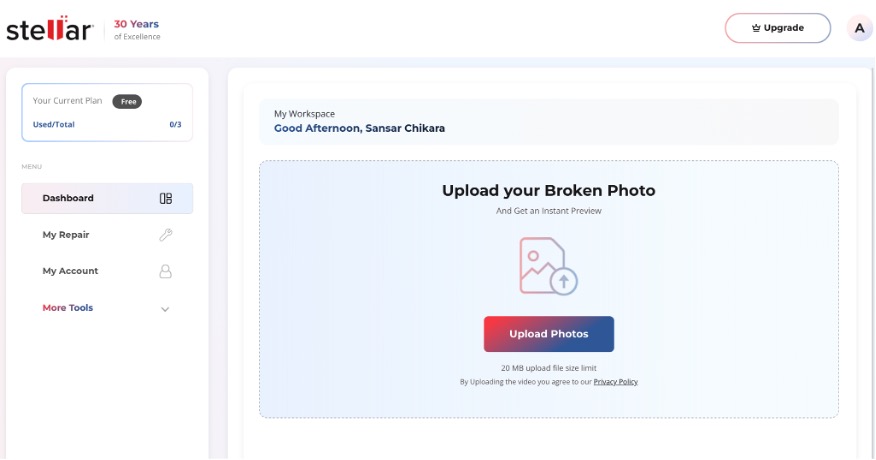
- Step 3: Once your picture is uploaded successfully, go ahead and hit the Start Repair
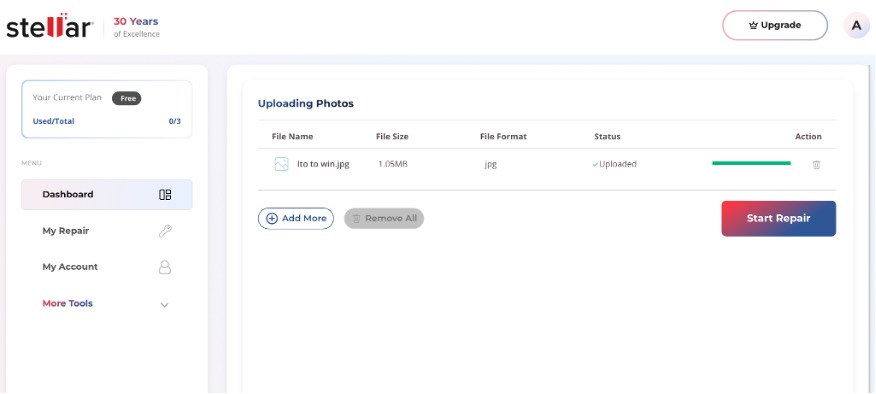
- Step 4: The tool will analyse the picture and repair it. Once this process is done, click the Download All Photos button to download the repaired photos.

If your file is above 20 MB and you don’t need any kind of size limit for photo repair, download Stellar Repair for Photo software and follow these steps:
- Step 1: Launch the tool by double-clicking on its icon.
- Step 2: Click Add File icon that appears on the centre of the user interface of the application.
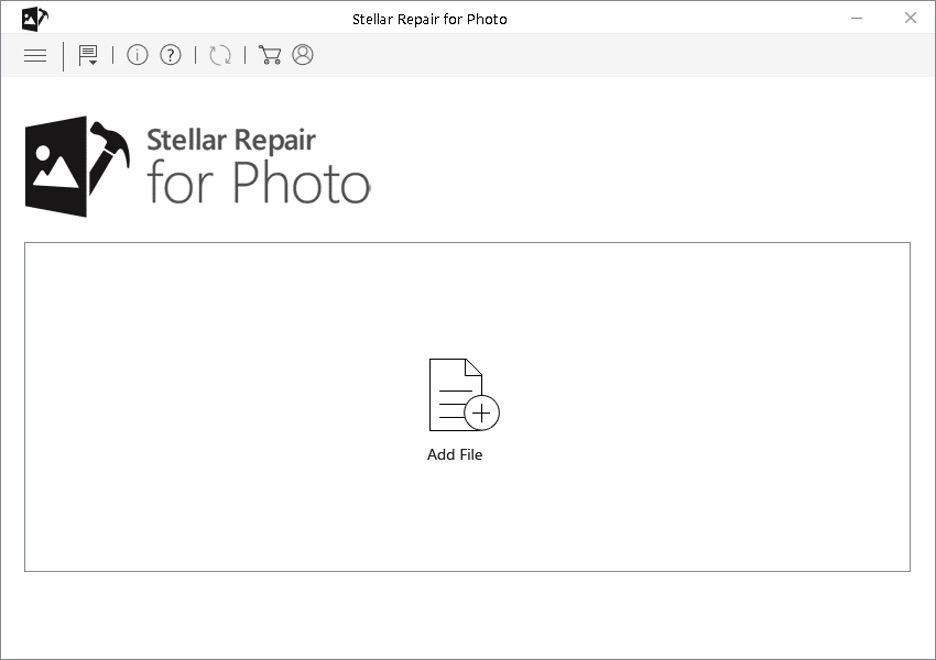
- Step 3: Once the application is done with the uploading, click Repair. This starts the repair process.
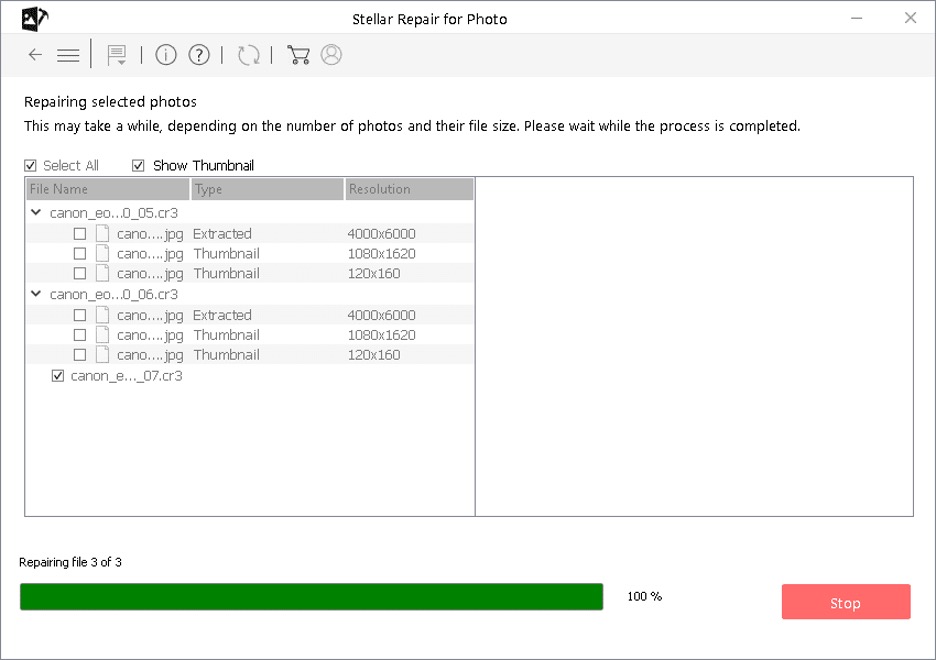
- Step 4: When the repair process is done, click Save Repaired Files to save those repaired files of yours.
Pro tip: Always preview the repair if possible before paying or downloading.
Preventing Future Glitches
Of course, nothing beats keeping your photos safe in the first place. Here are some pro tips:
- Back up religiously. Keep multiple copies of your photos (e.g. cloud + external drive). If one file gets mangled, you can restore a clean copy.
- Finish all transfers. Never yank out an SD card or unplug a camera mid-transfer. Make sure downloads or copies fully complete. Even a split-second power loss can corrupt files, so charge devices and use stable connections.
- Eject storage safely. Always use your OS’s “Safely Remove” or eject command before removing memory cards or USB drives. An inattentive card pull is one of the fastest ways to kill an image.
- Keep software updated. Use up-to-date camera apps and operating systems. Outdated or buggy firmware can corrupt images without warning.
- Handle devices with care. Don’t let phones or cameras die while saving pictures. Protect your memory cards in cases. Physical wear can create bad sectors that wreck files.
Wrapping Up
Glitched images can be scary, right? But there are usually many many ways to fix them. Start with that simple reboot, and then go ahead with a different viewer, clear caches or maybe use a free online fixer too. Those often do the trick for minor corruption but for those tougher cases, a photo repair software is the one that can breathe life back into even those badly damaged files. And once you have some good backup habits, you’ll be minimizing the risk of needing these drastic measures in the first place ever.
So don’t lose hope… or your favorite photos. With a little patience, a few smart tricks that we just chatted about and the right software in your kitty, you can defeat those digital gremlins and restore your images to normal.